Adding Transfers
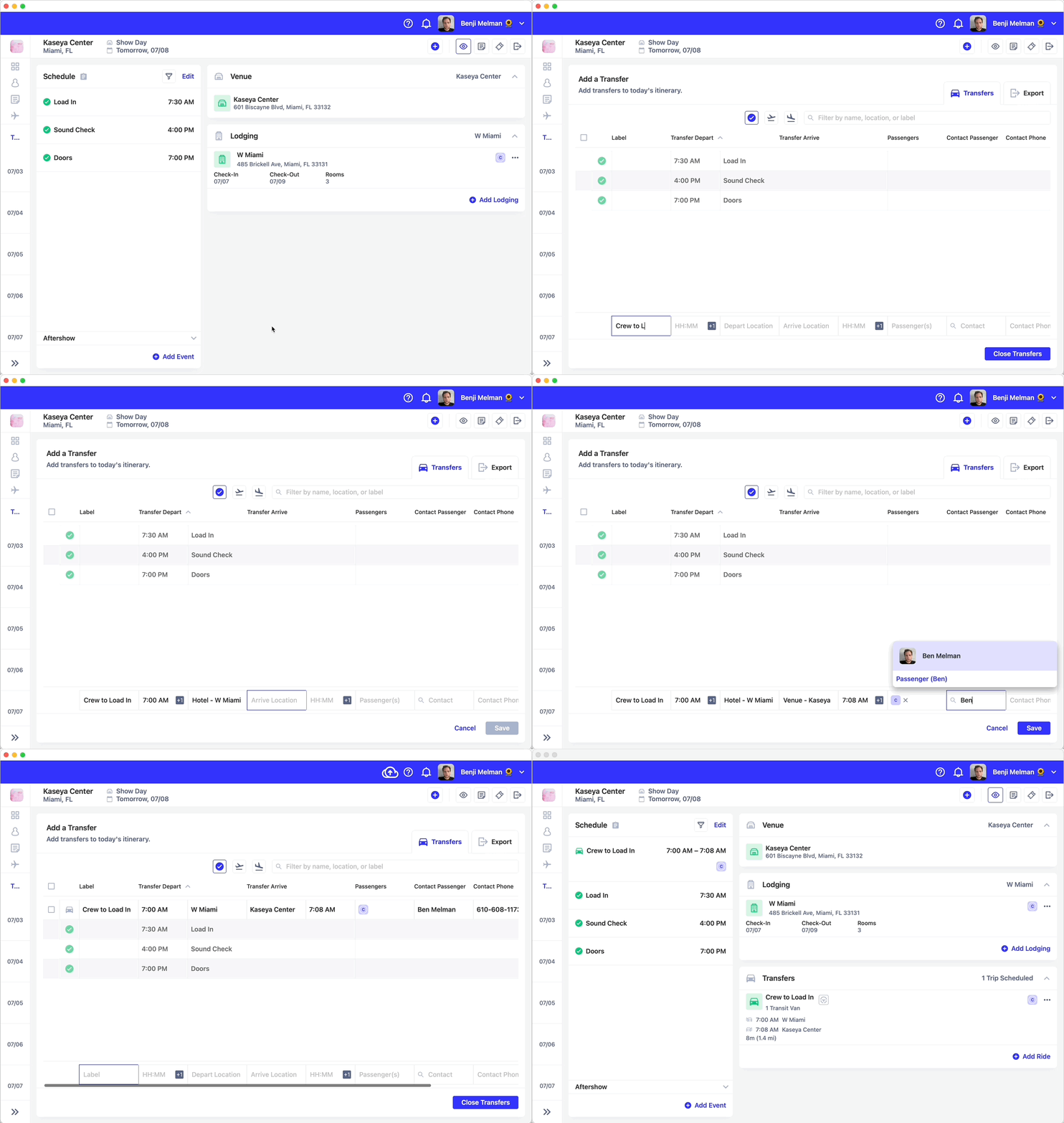


- Click on “Label” to give the ride a name, such as “Crew to Load In” then press tab
- Add a departure time, by entering a time. You can enter 7A and press tab or 1900 and tab, Daysheets will automatically format the time.
- Search for a departure location. Use the google maps search to add a
location, or use shortcuts to find relevant locations:
- Type H for hotel, and any hotels for that day will be listed as a suggested location. Use the arrow keys to select the appropriate hotel and press tab.
- Type V for venue, and any venues associated with the day will be listed under suggested locations.
- If you’re searching for any other location, simply type in an address or location, and select the correct result.
- Enter your arrival location the same way you searched for the departure location. Press tab.
- Daysheets will calculate your arrival time, using Google Maps, but you may want to adjust this to account for traffic. Press tab.
- In ‘Passengers’, search for passengers to add to this ride. you can search for individuals or groups. Once you’ve added the passengers riding in this transfer, press tab.
- The contact field allows you to assign a primary passenger. If you have a phone number associated with the primary passenger, the contact number field will automatically be populated. this field is optional, when you’re ready to proceed, press tab.
- Specify the transfer type, such as ‘Transit Van’ or ‘2 SUV’s’. Pressing tab takes you to ‘Save’.
- Press Save, your ride is now created.
Exporting Rides
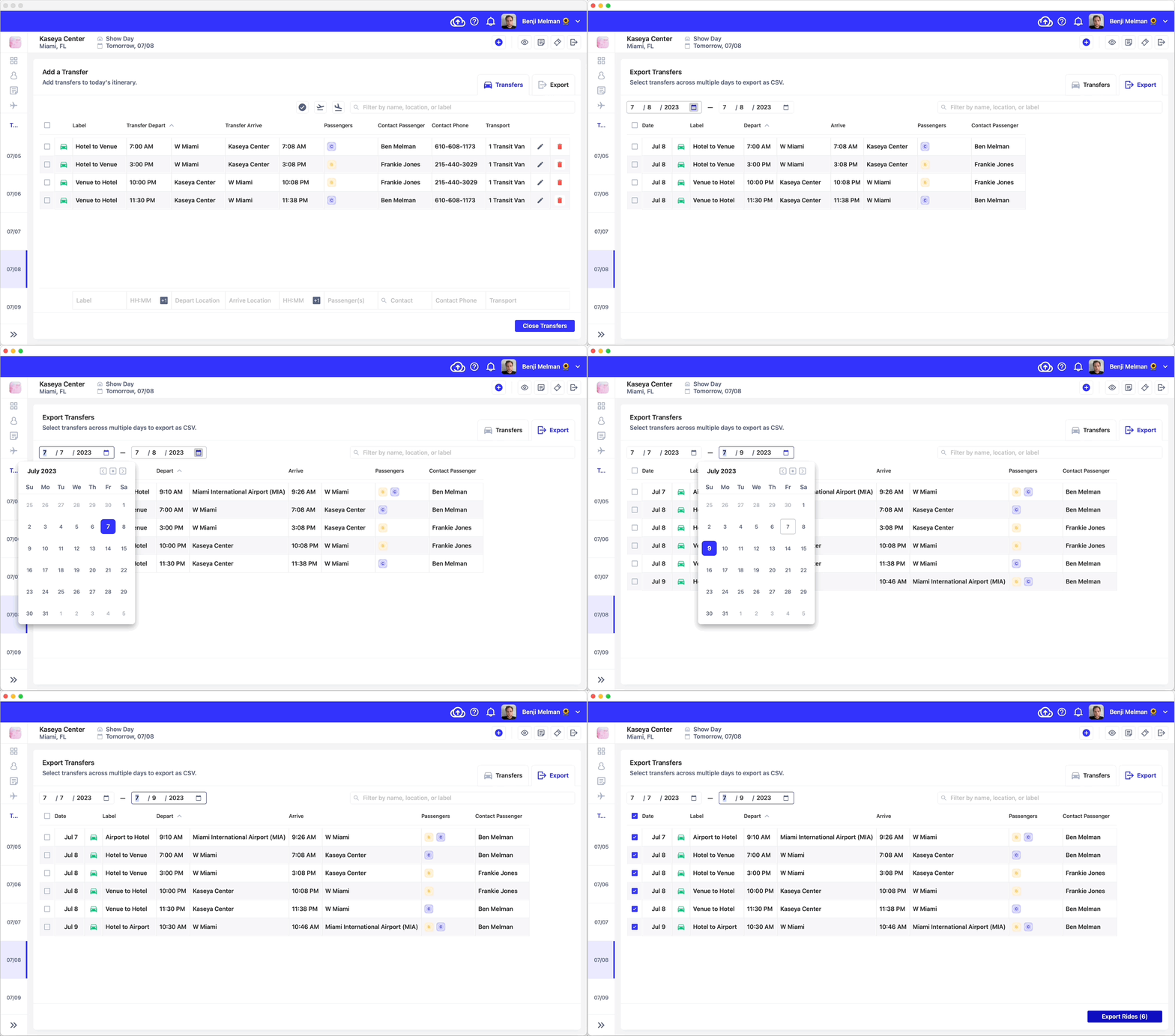
Daysheets allows you to export transfer grids as a customizable spreadsheet.- From the transfers view, click the export tab in the top right
- You can export multiple days worth of transfers by adjusting the start and end dates in the top left corner.
- Finally, select the rides you wish to export using the check boxes on the left, and click export.
- You will have the option to save the grid to a location of your choosing. From there you can open the spreadsheet in Excel or Numbers, and add, edit, or style to your liking.