

Adding Reservations to a Tour
When you’re clicked into any any day on your tour, you can add a hotel or lodging reservation by clicking the blue+ in the top right hand corner and select Lodging. You can also use the cmd + rshortuct.
You’ll notice the window appears in the center of your screen. You will want to fill out the fields you see in this window:
- Choose Lodging Type, such as “Hotel”, “Residence”, or “Rental”
-
Search for the name of the hotel or address, depending on the lodging type you selected
Hotels and addresses are automatically sorted by the location for the date. If you will be in Philadelphia, PA, hotels and addresses in Philadelphia will appear first as you search.
- Input check in and check out dates, to add the reservation to each day that it is applicable — additional check in and check out times are optional
- Add Confirmation/Reservation Number, an optional addition
- Tag Groups, to associate the reserrvation with a party on the tour
- Include Lodging Notes, such as WiFi passwords and hotel amenities
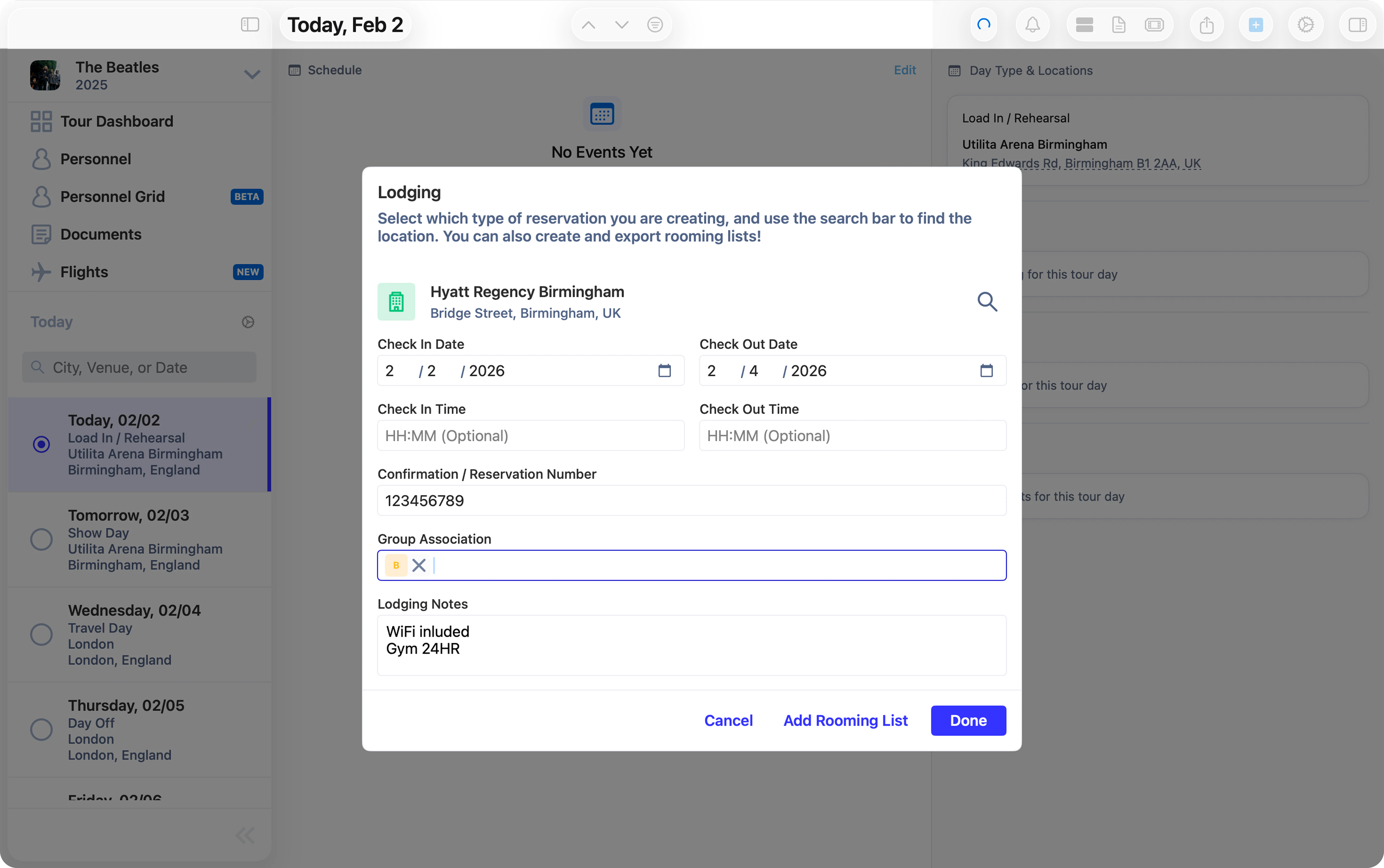
Done to save the reservation to your tour, or click Add Rooming List to add any applicable individual(s) or groups to the reservation.
Adding Rooming Lists
Simply search for individual(s) or group(s) in the search bar and select those that you’d like to attach to this hotel or other lodging. Those who are added to the rooming list will be able to view the reservation and all of the details you’ve included in their Daysheets app. Daysheets allows you to export this rooming list as a CSV file for easy sharing with others and uploading to other tools. Simply clickExportafter adding peronnel to the rooming list.
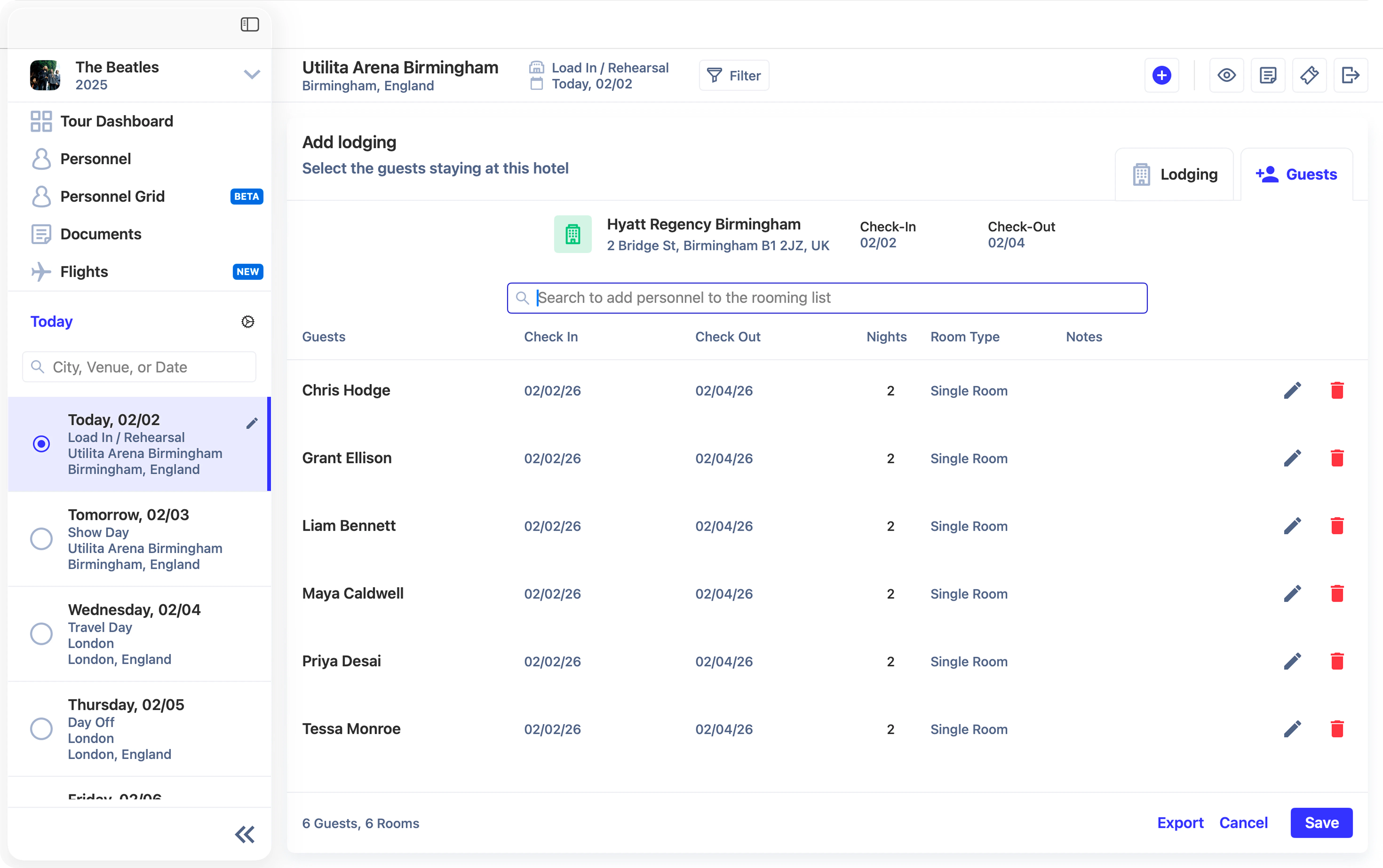
Saveto finish adding this lodging reservation to the tour. You’ll notice the reservation added to the Lodging section on the right.